
How to Repair an STL File for 3D Printing
Learn how to repair STL files with holes, non-manifold edges, and other mesh errors. Follow a free online workflow and check the result in your slicer.
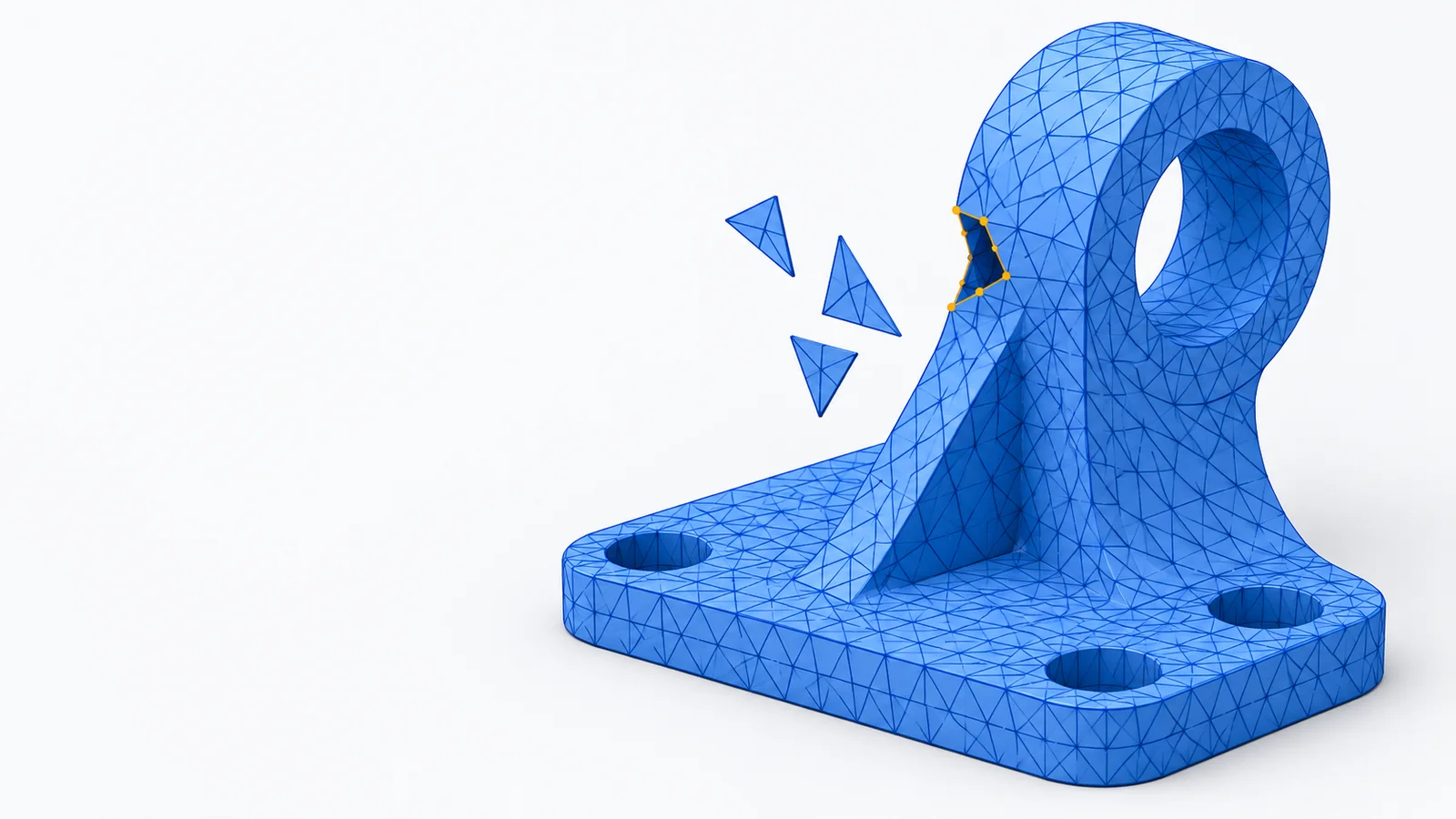
An STL can look correct in a viewer while still containing holes, non-manifold edges, or invalid triangles. This guide shows how to find common problems, try safe repairs, and verify the result before printing.
Quick Answer: How to Repair an STL File Online
Upload the STL, run a mesh check, apply a supported basic repair, then recheck and download. If the issue remains, review the advanced options.
Repair STL online to start with a free local check. Basic processing stays in your browser and does not require an account. Advanced cloud processing requires sign-in and your permission to upload the file.
Why STL Files Need Repair
An STL represents surfaces with triangles. It does not reliably describe the intended unit, wall thickness, or manufacturing purpose. Exporting, scanning, combining parts, or converting a model can leave repeated triangles, open boundaries, or connections that do not describe a simple surface.
A warning is a reason to inspect the model, not proof that every part is unusable. An open surface may be intentional. Repairing STL files safely means understanding what changed, preserving the source, and checking the result in the software used for your print.
STLRepair preserves the original coordinate scale. Its unit selector labels your interpretation; it does not convert millimeters to inches or resize the mesh. Keep the original file and confirm the intended dimensions in your slicer.
Common STL Mesh Errors
Holes and Open Boundaries
An open boundary edge belongs to one triangle instead of being shared by two surface triangles. Boundary counts are not hole counts: one triangular opening can have three boundary edges.
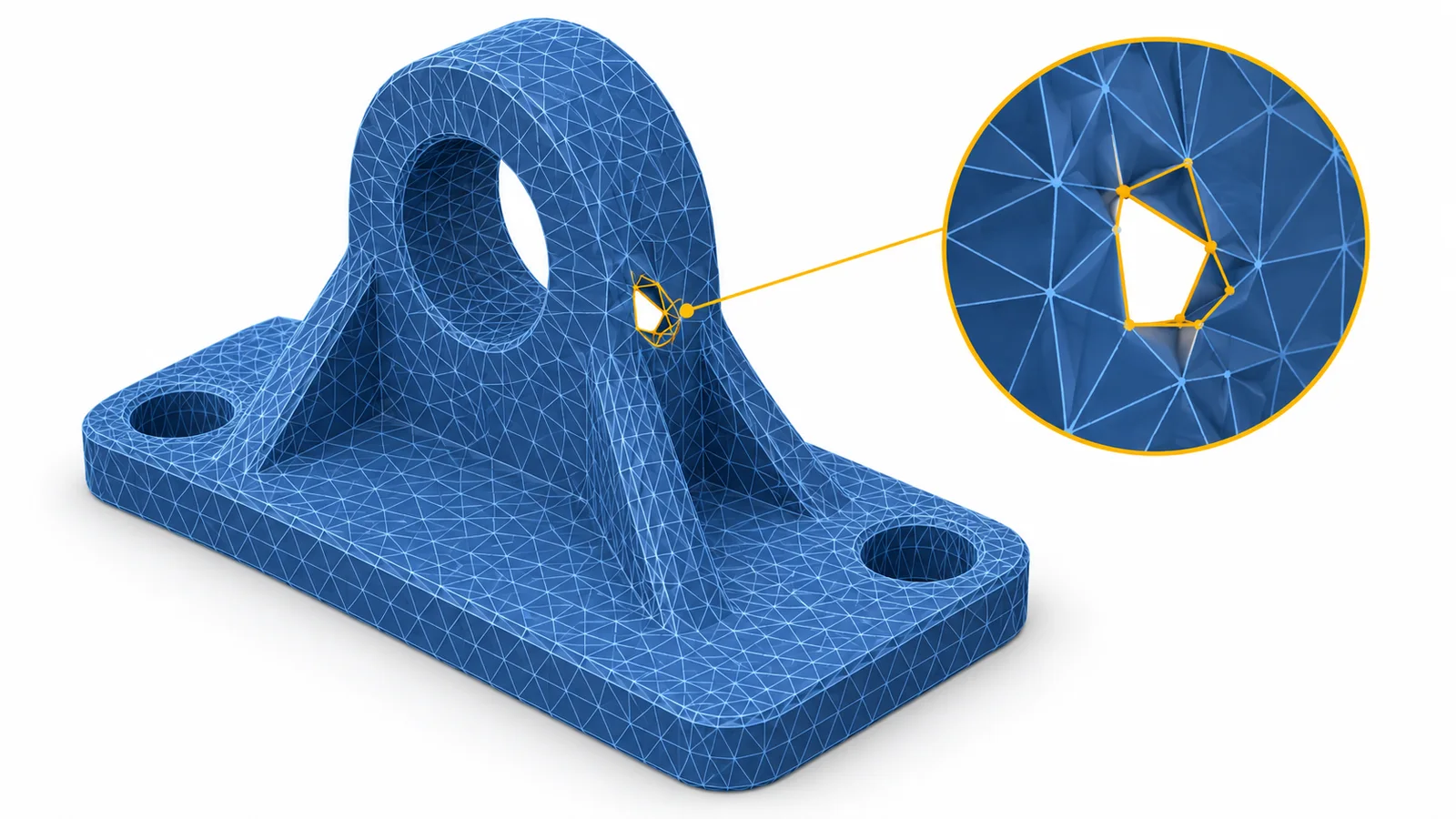
Concept illustration generated for this guide. It is not a screenshot or proof of a repair result.
In the original open-boundary sample, one triangle is missing from a cube. The actual checker reports 11 triangles and 3 open boundary edges. Free basic repair does not fill that opening; the after-basic STL still has 3 boundary edges. Read the measured report to reproduce the result.
Non-Manifold Edges
A non-manifold edge in this check is shared by more than two triangles. The intended inside and outside can be ambiguous at that connection. The browser checker does not perform every possible non-manifold vertex test.
The three-face sample has 1 edge shared by three triangles and 6 open boundary edges. Basic repair retains those faces for manual review; it does not guess which surface should be removed. The report records the unchanged counts.
Degenerate and Duplicate Triangles
A degenerate triangle has zero area, such as two or three coincident corners. A duplicate triangle occupies the same exact three vertices as another face. Small but nonzero triangles may carry real detail and should not be removed just because they are thin.
The cleanup sample contains 1 repeated face and 1 zero-area face. Free basic repair removes these supported defects. Oppositely wound coincident surfaces are retained for review because their intent can be ambiguous. Nearby vertices are not automatically welded across gaps.
Inconsistent Face Orientation
Adjacent triangles should use compatible winding across their shared edges. Stored facet normals can also disagree with the geometry. Correcting those local inconsistencies does not prove that every shell points outward or that a cavity has the intended orientation.
The orientation sample has one reversed cube triangle. The checker finds 3 inconsistent shared-edge directions. Basic repair reorients 1 face and recomputes its normal; the output has 0 inconsistent shared-edge directions. All 12 triangles and the original dimensions remain. The report records the measured changes.
Step-by-Step: Fix an STL File Online
Step 1: Choose the STL and keep the original
Open the STL repair workspace and select a binary or ASCII STL. You can select up to five files in the same uploader. Free checks run locally per file. Local limits depend on file size, triangle count, browser support, and available memory; the uploader shows the current limits.
Step 2: Read the mesh report
Rotate and inspect the model. Read the counts for open boundaries, non-manifold edges, duplicate and degenerate triangles, winding, and facet normals. Review the component count and dimensions.
“Not checked” means the engine did not evaluate that property. It does not mean zero problems. Browser checking does not certify self-intersections, minimum wall thickness, or outward shell orientation.
Step 3: Run a supported basic repair
Choose “Run Free Basic Repair.” The browser removes exact supported cleanup defects and attempts consistent winding where adjacency is unambiguous. It does not reconstruct missing surfaces or merge separate parts. A cancelled or failed attempt leaves your source file unchanged.
If an eligible issue remains, “Try Advanced Repair” may offer cloud processing. Sign in and approve the upload before continuing. Advanced results must pass the applicable quality checks before a prepaid repair is used and its download is offered. A partial or rejected result is not a successful repair. Review pricing and plan limits for one-time and Pro use; Pro batches use the same workspace.
Step 4: Compare the exported result
Switch between Before and After. Compare face counts, remaining warnings, components, and dimensions. The basic report is computed again from the binary STL that will be downloaded, including a check that export precision did not introduce new defects.
Pay particular attention to thin walls, intentional openings, mating surfaces, and separate parts. A smaller triangle count is not automatically better. If a shape changed unexpectedly, keep the original and stop using that output.
Step 5: Download and check in your slicer
Save the repaired STL under a new name and import it into your slicer. Do not replace your only original. Inspect the layer preview before printing, using the checks below.
How to Repair STL Files Without Blender
For supported basic mesh problems, a browser-based tool can save you from installing a desktop editor. For ambiguous topology or missing geometry, Blender or another dedicated editor may still be needed.
Use the browser report to identify the issue and the limits of the automatic result. Manual editing is appropriate when a tool cannot determine which opening should be closed, which intersecting surface is intended, or which mechanical dimension must be preserved.
How to Check a Repaired STL in Bambu Studio, Cura or PrusaSlicer
Import the downloaded STL into the slicer you intend to use. The exact controls vary by application and version; this guide does not assume an unverified menu path.
- Compare the model dimensions with the intended size. Confirm the unit interpretation and placement on the build plate.
- Read any mesh, shell, or geometry warnings. A lack of warnings does not certify a manufacturable model.
- Generate a preview with your intended printer, material, layer height, and other print settings.
- Inspect layers through the former problem area. Look for missing walls, unexpected internal surfaces, isolated islands, and gaps.
- Review thin details, overhangs, supports, and contact surfaces. These can need changes even when the edge topology is closed.
- For functional parts, compare the relevant dimensions and clearances with the original design before committing to a print.
When Automatic STL Repair Is Not Enough
Automatic repair cannot recover missing design intent. Large openings, complex self-intersections, overlapping shells, scanned noise, and precision-critical mating surfaces may need an experienced person to edit the source model.
Reconstruction can alter surface detail. Check the reported warnings and before-and-after measurements whenever a method changes topology. If the tool reports “unsupported,” “partial,” or a failed quality check, use that information to choose a manual workflow instead of treating the output as validated.
Real STL Repair Example
The original STLRepair cleanup fixture is a 10 × 10 × 10 cube in unspecified source units, with one repeated triangle and one zero-area triangle added deliberately. These are measurements from the browser engine, not estimates or AI-generated repair claims.
| Measured check | Before | After basic repair |
|---|---|---|
| Triangles | 14 | 12 |
| Duplicate faces | 1 | 0 |
| Degenerate faces | 1 | 0 |
| Non-manifold edges | 3 | 0 |
| Open boundary edges | 0 | 0 |
| Edge-connected components | 1 | 1 |
| Dimensions in source units | 10 × 10 × 10 | 10 × 10 × 10 |
Download the original STL, the basic-repaired STL, and the full before-and-after report. Open the original in the workspace and repeat the check. The homepage also shows wireframe projections of the actual fixture geometry.
The supported checks pass after two faces are removed. Self-intersections, wall thickness, and outward shell orientation remain untested. This simple case does not establish a success rate for AI models, scans, or other real-world meshes.
Frequently Asked Questions
What does watertight mean?
A watertight mesh has no open boundary edges under the checker’s topological definition. This is useful for 3D printing, but it does not prove that the model has no self-intersections or that it meets minimum wall-thickness requirements. Always inspect the repaired STL in your slicer before printing.
The browser report uses “edge topology” because a closed edge check alone is not a complete solid or printability test. Non-manifold connections, duplicate surfaces, and other geometry still need review.
Can non-manifold models print?
Some slicers can interpret some problematic meshes, but the result depends on the geometry and slicing settings. Inspect the affected layers instead of assuming that a visible model will produce the intended solid.
Does repairing an STL change its dimensions?
Supported basic cleanup aims to preserve the shape and original coordinate scale. Advanced reconstruction can change geometry, so review the reported measurements and warnings. Neither a unit label nor a passed topology check guarantees mechanical accuracy.
Try Free STL Repair and inspect the result before downloading. For optional advanced processing, see pricing.